Posts

Transform XML in a Logic App

Image
Transform XML in a Logic App If you are integrating two systems through XML where none of the systems conform to the other we have to make the receiving system able to read the data. In this example we will transform XML from one schema to another. Get XSD files of your XML files If you have XSD files for your from and to XML structures, you can skip this step. Below are two sets of XML structures, they actually matches but they have different language. This for the simplicity of the example.  Generate XSD for each of the XML structures, this can be done here:  https://www.freeformatter.com/xsd-generator.html#ad-output Fom XML: <?xml version="1.0" encoding="utf-8"?> <products> <product> <itemId>ABC123</itemId> <itemName>ABC 123</itemName> <price>1</price> <unit>pcs</unit> </product> </products> To XML:  <?xml version="1.0" encoding="utf-8"?> <...
Calling a D365 web service from a Power App

Image
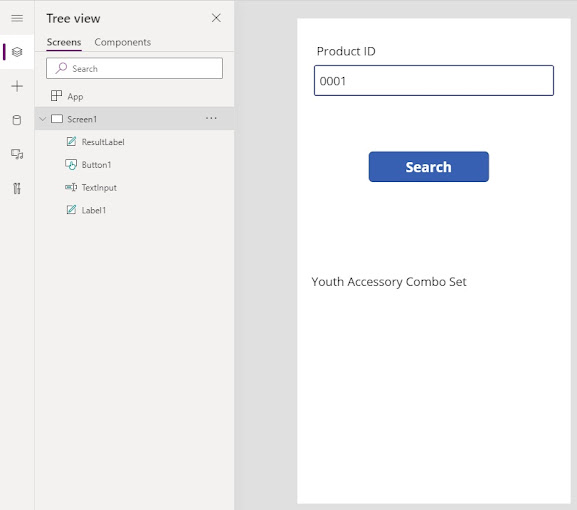
Here is a guide on how one can utilize a Powerapp to call a D365FO custom web service. Please see my post Lets make a service if you need a guide on how to make a custom web service. In power apps there are no built in way to do this directly, as I understand you need either to create a custom connector or call the web service through a Flow. In this post we will concentrate on the use of a Flow. Crate a Power app Begin by creating a blank power app. Add some controls similar to the image below, consists of a label, input text button and a label at the bottom. You now have a basic screen to enter information and pass to your web service. Now we need to declare a variable, in the menu on the left, select your App and change the event to OnStart .  In the formula input box declare a variable and notify a label of text change.  Set(SearchResult, "Enter product ID and press search"); Notify(ResultLabel.Text) Select your label to display the results (in my case ResultLabel ) and ...

Calling a D365FO Web Service from a Flow

Image
 Here is a guide on how to call a custom Web Service in D365FO from a Flow. To call a Web Service you need to gain access by retrieving an access token and pass that token in the header of your call. If you do not have a web service or you want to follow this example, you can download this file and import into your development environment, also you can  view this post to see how a web service is made. Create your flow Begin by creating your Flow by selecting a template, since I make this flow in relation to my PowerApp post, I will choose the Power Apps button template.  Basic Flow steps These are the basic steps that you need to call a web service, you can of course do it a whole set of different ways, like use Azure Keyvault or passing parameters instead of hard coding [like I've done here]. Quick explanation: *Variable, I just hardcoded this, you might choose different approach. Called by a power app.  initialize variables: TenantID* ClientID* Web service URL* P...

Call a logic app from a business event

Image
Business events in D365 is a nice feature that one can latch on to and use in integrations. In this post we will explore how to call a logic app from a business event that has been triggered. Pre- requisites: - Azure subscription with credit - D365FO with privileges to manage business events - Office 365 subscription or email via Outlook.com Business event setup, part 1, schema In D365FO you have several standard out of the box business events called Business events catalog , located at System administration --> Setup --> Business events .  Locate and highlight the Business event ID, PurchaseOrderConfirmedBusiness . Press the link Download schema  to download the schema file (indicated with a green circle in picture below). Open the downloaded file in notepad and keep it open to use it later Logic app Go to azure portal, make sure you have credit and able to create a new Logic App. I like using the Azure portal App for simple examples like this. We are to create the simp...

Filtering data from entity in call

Image
 If you want to fetch or view data from a data entity you might want to filter it to limit your results. This can be done by applying the filter functionality. If you want to fetch all data in an entity you add data/[Entity name] in your environment URL. For example https://myd365environment.sandbox.operations.dynamics.com/data/WorkListSalesTables. Add filter to URL If that entity returns data irrelevant to you, you can filter it by adding filter keyword and column names and values to your URL. Under is an example where I only want one specific order. The column for order is named OrderNumber and the order number I want to retrieve data from is 100051 . Readable version: https://myd365environment.sandbox.operations.dynamics.com/data/MyEntity?$filter= OrderNumber eq ' 100051 ' Parsed to Web URL: https://myd365environment.sandbox.operations.dynamics.com/data/WorkListSalesTables/?$filter= OrderNumber %20eq%20%27 100051 %27 If you have more values to filter on you add them with the...